The short answer
- Use Preview or QuickTime when you need to open, annotate, crop, convert or trim a single file.
- Use FrameSight Pro when you need to decide between versions — exports, edits, grades, codecs or camera samples — and want every version to move together.
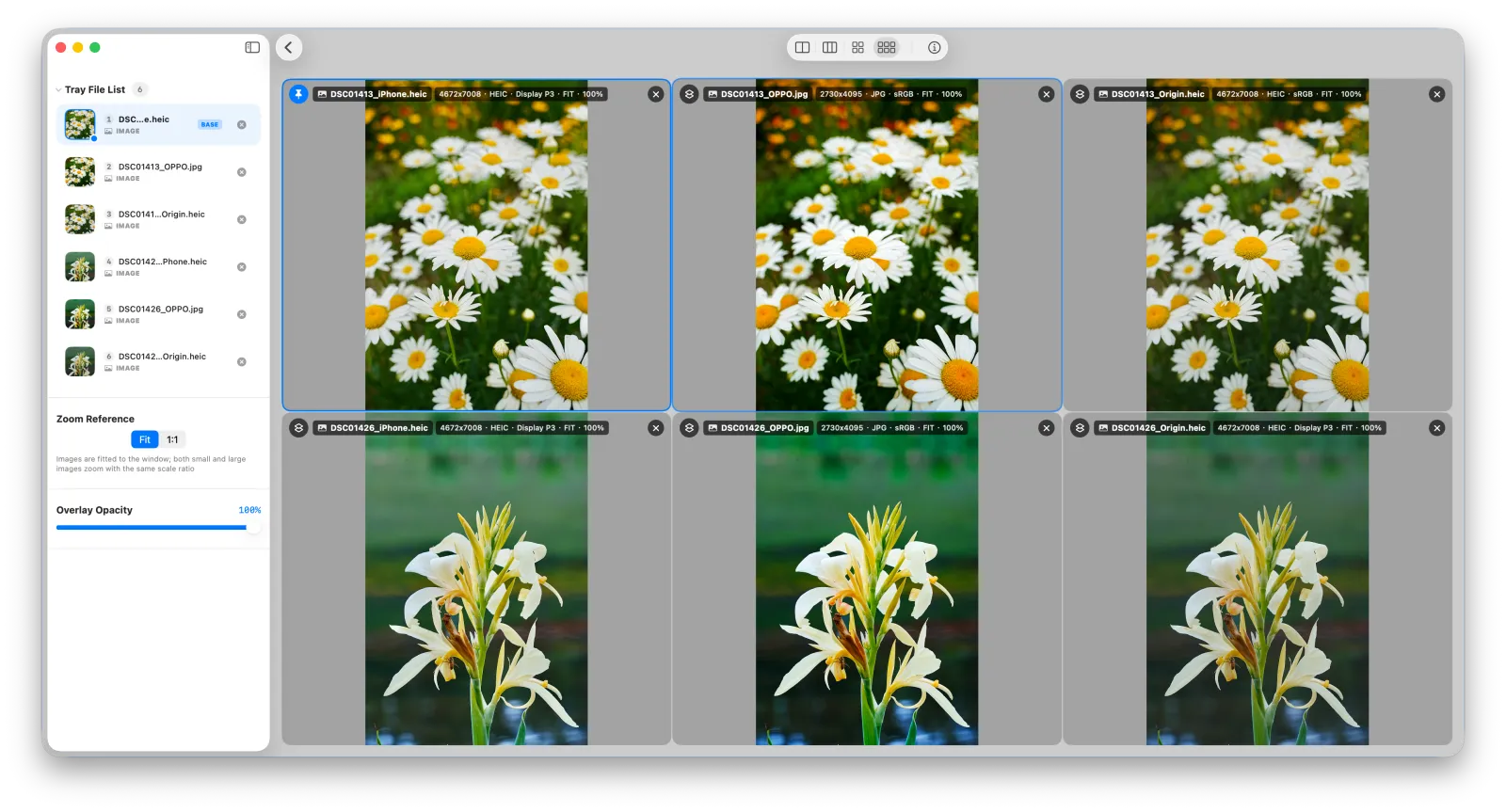
Feature comparison
| Task | Preview | QuickTime Player | FrameSight Pro |
|---|---|---|---|
| Show several files side by side in one window | No — one image at a time; arrange separate windows by hand | No — one video per window | Yes — 2–6 images and videos, tiled automatically |
| Linked zoom and pan across files | No | No | Yes |
| Play several videos in sync | — | No | Yes — play, pause and seek together |
| Step frame by frame | — | Yes, one video at a time | Yes, all clips together |
| Mix images and videos in one comparison | No | No | Yes |
| Collect picks and copy them out in one step | No | No | Yes — Tray and one-click export |
| Annotate, crop, resize, convert images | Yes | — | No |
| Trim, split or re-export videos | — | Yes | No |
| Price | Built into macOS | Built into macOS | Free download with a 2-item Lite tier; Pro by subscription or lifetime purchase |
Comparing images: Preview vs FrameSight Pro
To compare two photos in Preview you typically open two windows, resize them to sit next to each other, then zoom and scroll each one until they show the same area. Every time you move, you repeat it in the other window.
In FrameSight Pro you select the images and press ⌘D. The layout tiles automatically for 2–6 images, and zooming with ⌥ + scroll or dragging to pan moves every image to the same region. Zoom Reference switches between Fit and 1:1 pixel size, so a 12 MP and a 48 MP version can be compared at a common scale or at their native resolution.
Comparing videos: QuickTime vs FrameSight Pro
QuickTime Player is a solid single-file player, and it can step frame by frame with the arrow keys when paused. But two QuickTime windows know nothing about each other, so you start, stop and scrub each one separately.
In FrameSight Pro, Space plays or pauses every clip, the shared timeline seeks all of them, and ← / → step all clips by one frame together. The Timeline panel offers Strict Sync, Adaptive Sync or a Reference clip for versions with different frame rates or lengths. Read the full walkthrough in How to compare videos side by side on Mac.
Which one should you use?
- Occasional one-off check of two files: Preview or QuickTime is often enough.
- Regular version reviews in photography, camera and ISP tuning, design QA or video delivery: FrameSight Pro removes the window juggling and manual alignment.
- Editing afterwards: pick the winner in FrameSight Pro, then open it in Preview, QuickTime or your editor.
Privacy: like Preview and QuickTime, FrameSight Pro works entirely on your Mac. Nothing is uploaded and no media or personal data is collected.
Frequently Asked Questions
Can Preview show two images side by side with the same zoom?
You can open two Preview windows and arrange them next to each other, but each window zooms and scrolls on its own, so you have to line up the same detail by hand. FrameSight Pro links zoom and pan across every image in the comparison.
Can QuickTime Player play two videos in sync?
QuickTime Player has no built-in way to link several windows. Each window plays, pauses and seeks independently. In FrameSight Pro, one Space press plays or pauses every clip, and the arrow keys step all clips frame by frame together.
Does FrameSight Pro replace Preview or QuickTime?
No. FrameSight Pro focuses on viewing and comparing. It does not annotate, crop, resize, convert, trim or re-encode files, so most people keep using Preview and QuickTime for those tasks.
Is FrameSight Pro free?
FrameSight Pro is free to download and the free Lite tier compares two items side by side. Pro unlocks 3–6 items at once and other features, with a 14-day free trial of the yearly subscription, a monthly option or a one-time lifetime purchase.